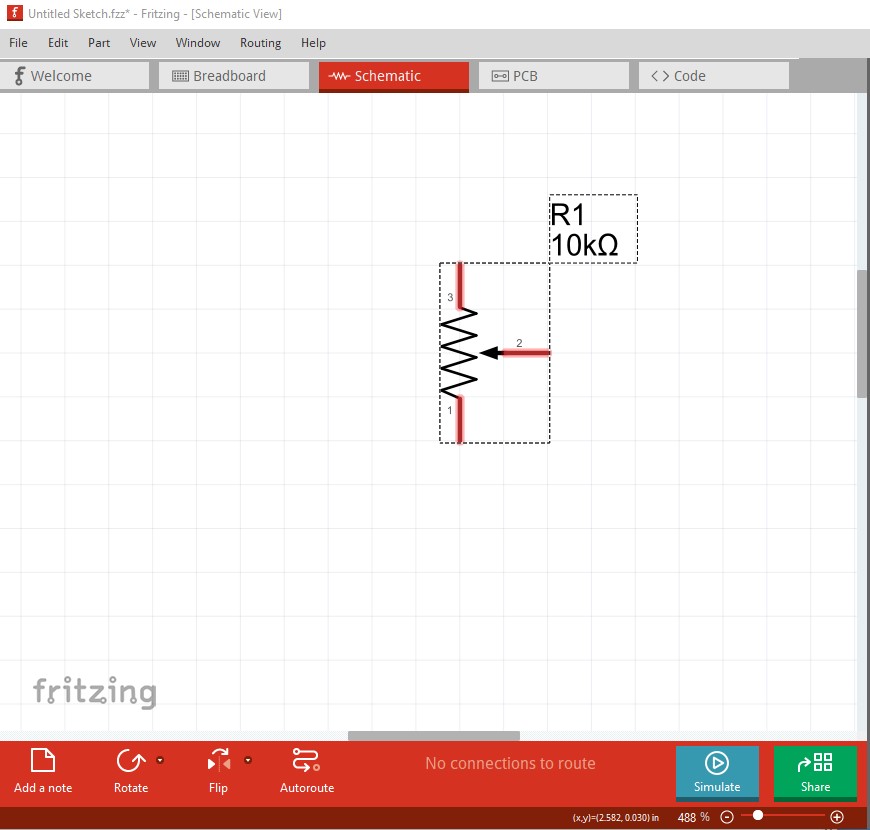
First, what fritzing version are you using (current is 1.0.0)?) I ask because the pot in your images is old style, the current versions look like this in schematic:
This part was recently updated from the original layout which is as you show in your images. Then unlike most other EDA packages Fritzing reflects changes in any view (such as schematic) in to the other 2 views. Sometimes this causes problems if there is already a conflicting connection in another view. That is possibly what happened to your breadboard image. This is a relevant topic because there is a discussion going on on github here
the intent of which is to update the standards docs to specify part and schematic specifications with the view to then updating the core parts to match the new specs. That however will likely take a long time even when the discussion completes (if it completes) as it is going slowly. The requirement for a “standard” schematic has come up, but I am unaware (which may just be my ignorance!) of a standard. Apparently Kicad has a standard of some kind but pointers to examples and/or desires for formats preferably with documentation would be desirable. Most of the parts in your images are old (more than 10 years) and development in Fritzing stopped in 2016 (and started again a few years ago) which means not much got changed for quite a few years and the standards have always been relatively incomplete (and changing them has been in the past controversial!) There is now a head developer who has the ultimate say in what gets done (in the past the discussion was among users because there were no developers!) That said you breadboard problem is likely solvable by deleting all traces in breadboard (Routing->select all wires, then delete) which will reduce the wires to rats nest lines sourced from schematic. As part of that there is currently a bug where changes made in more than one view can cause routing database corruption which ruins the entire sketch (and the only solution is usually to start over.) So the advise is make all your changes in one view and then click on (and correct if needed) the rats nest lines in the other views. After 5+ years of trying to reproduce this bug I finally managed it (and the developers found an even easier way to reproduce it!) and some fixes may have made it in to 1.0.0 but more are still needed. Til that is done the advise still stands (although it isn’t necessarily only changes in more than one view that causes the problem!) Hope this helps some!